You can compose email messages to your Clients. Useful if you want to share gallery / album URLs, or link of final images via email.
Photopickr doesn’t send these messages directly, just opens your default email app with pre-filling the receiver email address, message subject and content based on the selected template.
This function can dramatically speed up your notification activities.
Creation and edit templates are available under profile / messages templates menu. Two types of templates can be defined:
#1 Send Sharing URLs (Share Samples)
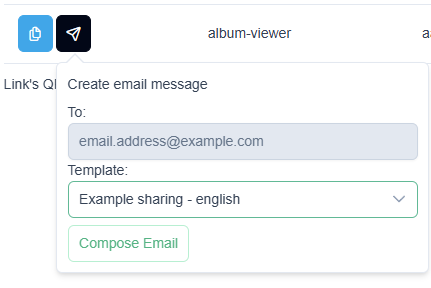
On sharing screen you can access the function:
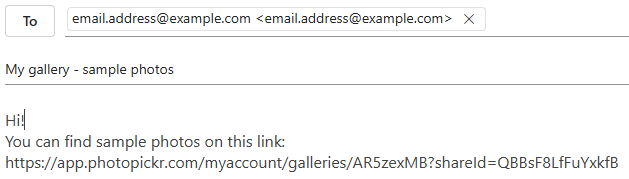
By clicking Compose Email button, your default email app will be opened, so you can review the message here and send directly from you email account:
If you want to share an album, you can prefill the receiver email address on album settings:
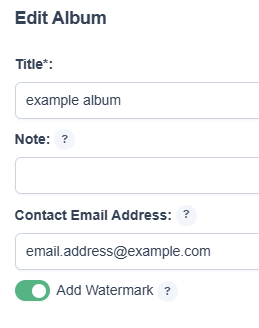
If email address unavailable in album, you can add this later in your email app also.
Setting the template
You can define these templates freely as many as you want. When you create a template you can use these variables:
%GALLERY-TITLE%
%SHARE-URL%
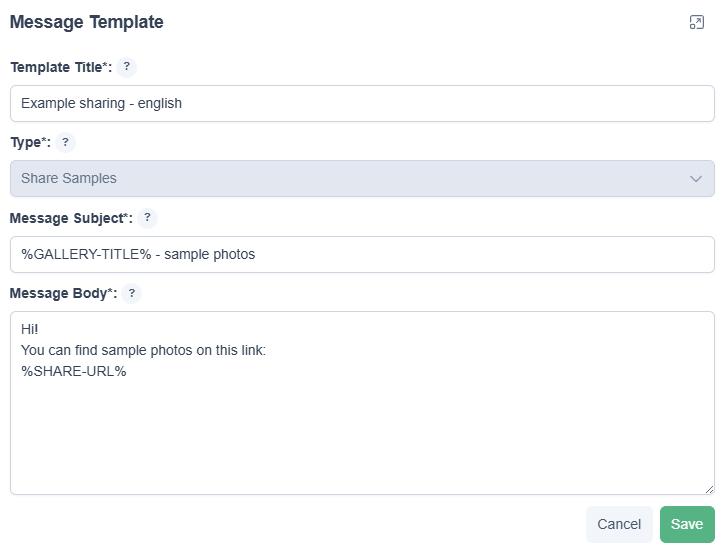
These variables will be replaced by photopickr when opening your email app after clicking compose email.
#2 Send final external links
On order details screen, you can send the external link of final photos to given contact email of the order.
The URL should be an external link, not stored by photopickr so you have to paste the link here from your service provider:
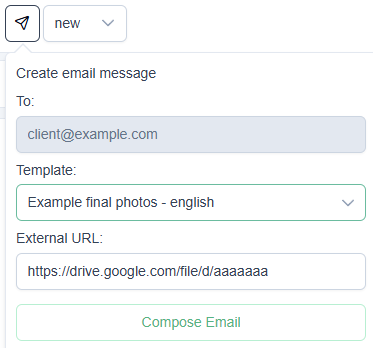
By clicking Compose Email button, your default email app will be opened, so you can review the message here and send directly from you email account:
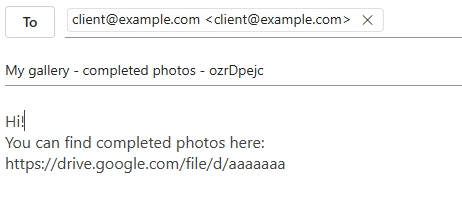
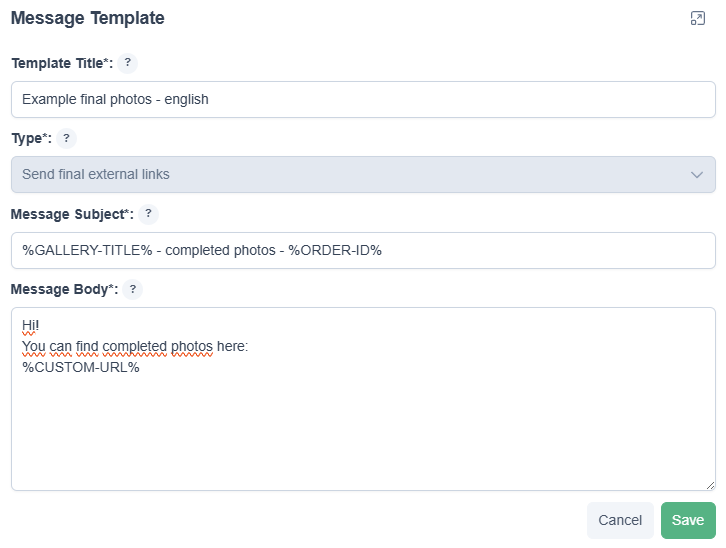
Setting the template
You can define these templates freely. When you create a template you can use these variables:
%GALLERY-TITLE%
%ORDER-ID%
%CUSTOM-URL%